Your new website opens, but messages to you@example.com bounce or disappear. You changed nameservers during the move and copied the website’s A record, so why would email be affected? Because the nameserver change moved authority for the whole DNS zone, not just the website. The new provider may not have inherited the MX and TXT records that tell senders where mail goes and how outbound mail is authenticated.
That is the pattern described in a r/webhosting report about a domain and hosting move: the site moved, the previous mail records were replaced, and incoming mail bounced. A second hosting discussion distinguishes mail sent from the website from mail sent by outside people. Those accounts are useful prompts for diagnosis, not instructions to copy anyone’s provider values.
Short answer: Do not change nameservers back reflexively. First determine which DNS provider is currently authoritative. Compare its MX and mail-authentication TXT records with the exact values supplied by your mail provider. Then test incoming mail, outgoing mailbox mail, and website-generated mail as three separate paths. Restore missing records in the active zone, and ask the web host about remote mail routing if only messages generated on the website fail.
Write down which kind of mail is broken
“Email is down” hides different failures. Send a message from an unrelated mailbox, such as a personal account at another provider, to the affected address. Save any bounce including its SMTP status and receiving server. Separately send from the affected mailbox to an unrelated address and inspect whether it arrives or lands in spam. Finally submit the website contact form, if one exists, and check its delivery. Do not use two addresses on the same domain as your only test; an old host may route those locally and hide a public MX problem.
| Symptom | First place to look | Why |
|---|---|---|
| Outside senders bounce | Active MX records and mailbox status | Incoming mail depends on public routing to the receiving provider. |
| Mailbox sends, recipient rejects or spams | SPF, DKIM, DMARC, and sending service | Outbound identity may not align with published authentication records. |
| Outside mail works, website form fails | Host mail routing and application SMTP | The web host may treat the domain as a local mailbox destination. |
| Only one address fails | Mailbox, alias, and forwarding configuration | A domain-wide DNS change normally affects more than one recipient. |
These are starting points, not diagnoses. A full inbox, disabled mailbox, or provider outage can cause similar symptoms. Record the exact test address, time, and error before changing anything. Avoid posting complete headers publicly: they can contain personal addresses, internal hostnames, and message identifiers.
Find the DNS zone that currently answers for your domain
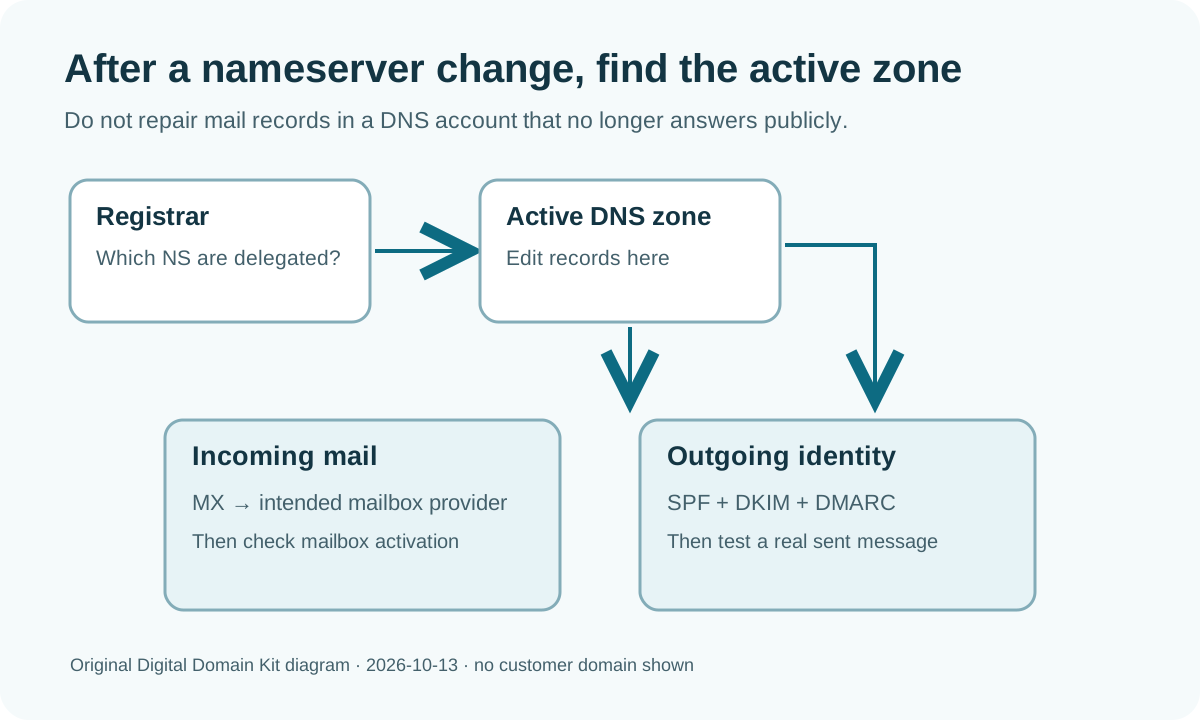
The registrar holds the nameserver delegation. The named DNS provider publishes records. When nameservers change, editing the old provider’s zone may have no public effect even though its dashboard still shows the old records. Use the Digital Domain Kit DNS Lookup to inspect NS records for the base domain and compare them with the assigned nameservers in your new DNS account. The diagram below shows the decision path; it is an original illustration, not a screenshot of a customer account.

If the nameservers still point to the old provider, inspect that zone instead. If they point to the new provider, gather records there. You can cross-check with dig example.com NS and dig example.com MX, substituting your domain. A direct authoritative query can distinguish an unpublished record from a recursive resolver’s cached answer, but do not use a guessed nameserver. Get the server name from the active provider or a trace. Cloudflare’s nameserver troubleshooting guidance explains why the registrar delegation and provider zone must agree.
Recover the old record values from your mail provider’s current setup page or your previous DNS export. A screenshot of the old zone can help compare values, but do not assume old values are still correct: providers can change recommended records. The correct mail provider is the company hosting the mailboxes, which may be different from the registrar, website host, and DNS provider. Confirm that relationship before copying a record from a forum post.
Restore inbound routing first: MX and mailbox activation
An MX record names the server that receives mail for a domain and includes a priority. Publish exactly the MX set your mail provider specifies in the authoritative zone. The website’s A or CNAME records can continue pointing at the new host; there is usually no reason to reverse a working website move to repair mail. The Google Workspace MX setup instructions, for example, say that senders look up MX to decide where to deliver incoming mail and require Gmail activation in the Admin console as a separate step. They also warn that older Workspace setups may use different legacy MX values. That is why copying a single generic “Google MX” answer from an old tutorial is risky.
Remove unintended provider-default MX records only after identifying the intended mail service. Multiple MX records with different destinations are not a safe way to “cover both providers”; lower-priority servers may receive messages during outages, and mail can split between unrelated systems. Keep the exact priorities and hostnames given by your provider. Some DNS interfaces ask for @ or a blank name for the base domain and may add a trailing dot automatically. Check the saved public answer after you submit the form, rather than trusting the edit screen.
If public MX is right but mail still bounces, read the bounce. “User unknown” can mean the mailbox or alias was not created at the receiving provider. “Domain not found” can point to DNS. An authentication rejection concerns outbound mail, not the existence of MX alone. Google’s setup instructions explicitly separate publishing MX from activating Gmail; other providers have their own domain-verification and mailbox steps. Check provider status and the affected address before changing the DNS again.
Restore outbound identity: SPF, DKIM, and DMARC
Incoming routing and outbound authentication are different jobs. SPF is a TXT policy identifying approved sending services. DKIM uses a DNS-published public key to verify a signature added by a configured sender. DMARC describes how receivers should handle messages whose authenticated identity does not align with the visible From domain and can provide reports. A website move can disrupt outbound mail if those TXT records were left in the old zone, even while the mailboxes themselves remain available.
Start with your mail provider’s exact current records. Google’s SPF setup guidance notes that organizations using additional senders need to account for them; it also recommends DKIM and DMARC. If your website sends mail through a form service, CRM, newsletter platform, or transactional provider, list each sender before editing SPF. Publish one coherent SPF TXT record for the domain; do not paste several independent SPF policies at the same name. SPF has DNS-lookup limits, so blindly stacking include: entries can invalidate a policy.
DKIM usually uses a provider-specified selector, such as selector._domainkey.example.com, not merely a TXT record at the base domain. Copy the selector and key from the actual sending account, and confirm signing is enabled there. A stale DKIM key copied from an old account can be present in DNS yet useless to the current sender. DMARC typically lives at _dmarc.example.com. Do not jump straight to a strict reject policy during emergency recovery if you have not inventoried legitimate senders. Restore the known previous policy, verify authentication on real messages, and tighten only with evidence.
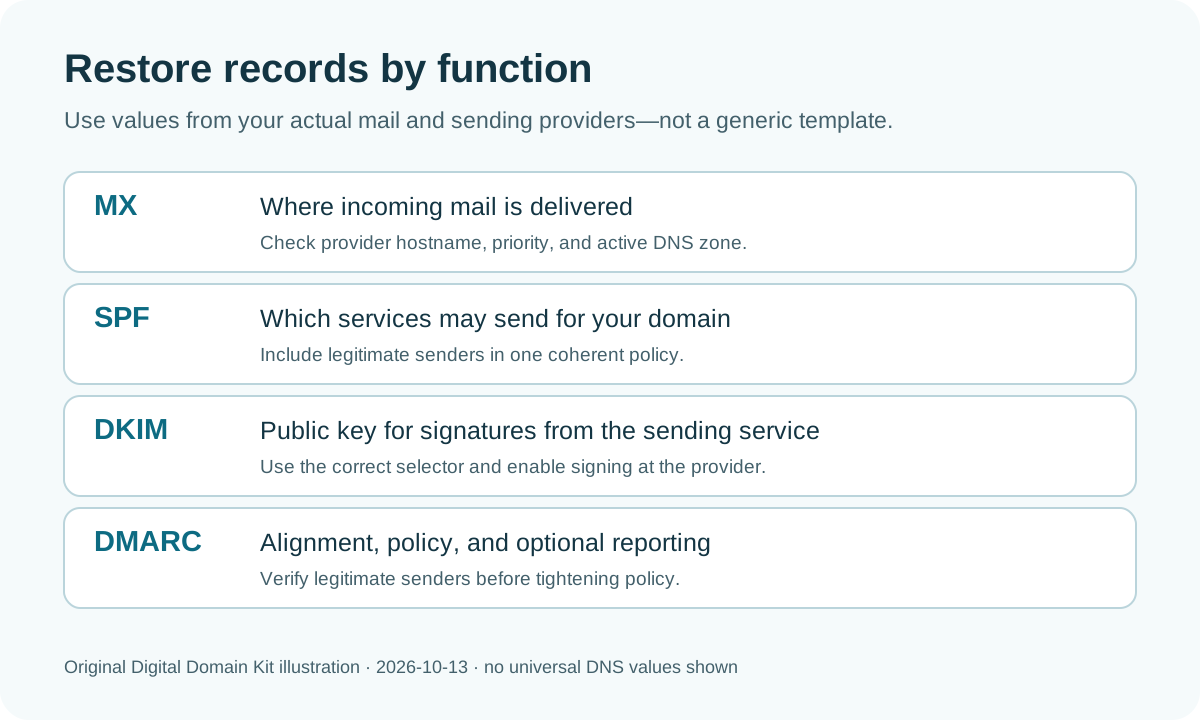
After publishing, use the DNS Lookup tool to inspect TXT answers at the root, the provider’s DKIM selector, and _dmarc. A public TXT answer confirms publication, not that a real message passes authentication. Send an ordinary test message to a mailbox you control and inspect its authentication results or your provider’s reporting dashboard. Google’s SPF troubleshooting guide points to authentication reports and warns about SPF’s lookup limit. If you cannot interpret the header, ask the sending provider to identify which service actually sent the message.
If only the website’s messages fail, inspect local mail routing
A contact form can fail even when outside-to-mailbox delivery is healthy. Shared hosting control panels sometimes offer “local” or “remote” mail exchanger settings. If the host assumes it owns mailboxes for the domain, a message generated on that same host may be delivered locally instead of following the public MX destination. The hosting discussion that prompted this distinction describes exactly that symptom, but you should verify your own host setting rather than copying the proposed fix blindly.
Ask the web host whether its local mail routing is enabled for the domain and whether the application uses PHP mail, local sendmail, or an authenticated SMTP/API service. If your mailbox is hosted elsewhere, the host may need a remote-mail setting. If the application sends through a third-party service, its domain-verification and SPF/DKIM records may also need restoring. Test a form submission and check the application log or provider delivery event. A “success” banner on a form means the application accepted the request; it does not prove that the message reached a mailbox.
Do not solve a local-routing issue by adding the website host as another MX destination unless the host actually operates the mailbox service. That can create split delivery and harder-to-find lost mail. Likewise, a plugin that forces SMTP cannot restore missing public MX records for incoming mail. Match the remedy to the failed path.
What to do while caches and queues catch up
Once authoritative records are correct, recursive resolvers may still hold an earlier answer until its TTL expires. Mail senders can also queue and retry temporary failures according to their own systems; a message that received a permanent bounce is not guaranteed to return. Google’s Workspace instructions say recognition of new MX records can take up to 72 hours. That is a provider-specific upper window, not an excuse to leave a wrong authoritative answer untouched. Record the current public answer and recheck at sensible intervals.
For urgent correspondence, contact important senders through another channel and ask them to retry after confirmation. Preserve bounce samples with timestamps and the sending provider’s hostname. If some mail arrived at an unintended host during the change, ask that host whether it stored messages; do not assume there is a recoverable copy. Avoid repeatedly switching nameservers: each switch changes the authoritative zone again and can prolong a confusing split view.
Final recovery check
- Confirm the registrar delegates to the DNS provider whose zone you edited.
- Compare public MX records and priorities with the mailbox provider’s current instructions.
- Confirm the mailbox or alias exists and the provider has activated mail for the domain.
- Check SPF at the root, DKIM at the right selector, and DMARC at
_dmarc. - Send one outside-to-domain test, one domain-to-outside test, and one website-form test.
- Save the post-recovery DNS values and ownership of each service for the next website move.
If a test still fails, send the provider the exact domain, affected address, timestamps, public DNS answers, and a redacted bounce or message header. For an error or correction in this guide, use the Digital Domain Kit contact page; never send us mailbox passwords or private account access.
Sources and review method
Reviewed October 13, 2026. Technical guidance was checked against Google Workspace’s MX instructions, SPF setup, SPF troubleshooting, and Cloudflare’s delegation guidance. The two Reddit posts above informed the reader scenario only. We did not access a private mailbox, perform a live nameserver change, or test recovery of bounced messages. Record values must come from the reader’s actual mail provider.