An address like hello@yourbusiness.com looks more settled than a personal inbox. The actual setup is not hard, but DNS can make it feel like you are defusing a small bomb: one record points mail in, another proves who is allowed to send, and one careless replacement can interrupt email that already works.
The calm approach is simple: choose the mail provider first, verify domain ownership, add the provider’s records exactly as shown, then test before tightening security policies. Keep the website records alone unless the provider specifically tells you otherwise.
This guide is written for a new domain or a low-risk move. If your business already receives important email, schedule the MX cutover, create mailboxes before the change, and keep a copy of every current DNS record. Microsoft explicitly advises creating users and mailboxes before adding its MX record so mail continues to reach the right people during a move. Microsoft: add a custom domain
What you need before touching DNS
Have these ready:
- Access to the place where DNS is actually hosted. This might be your registrar, but it could be Cloudflare, your host, or another provider.
- A list or screenshot of existing DNS records, especially MX and TXT records.
- The new mail provider’s setup wizard open in another tab.
- A decision about who needs a mailbox, shared addresses (such as
support@), and aliases. - A quiet change window if you are replacing an existing email service.
The provider matters less than whether it fits your team. A one-person business may care about price and a clean inbox. A company already using Microsoft apps may prefer Microsoft 365. A team that lives in Google Docs may prefer Google Workspace. Zoho Mail is another option with its own domain-verification and DNS instructions. These are examples of common choices, not a ranking or a claim that they are interchangeable.
| Question | Why it matters |
|---|---|
| Do you need shared inboxes, aliases, or groups? | A single mailbox and a support workflow are different jobs. |
| What apps does the team already use? | Calendar, files, identity, and chat can matter as much as email. |
| Who can edit DNS? | The person choosing mail may not control the domain. |
| Is this a new domain or a migration? | A migration needs mailbox creation and a cutover plan first. |
| Will another service send as this domain? | Newsletter, invoice, CRM, and help-desk senders affect SPF/DKIM/DMARC. |
Four DNS records, in plain English
MX: where incoming mail goes
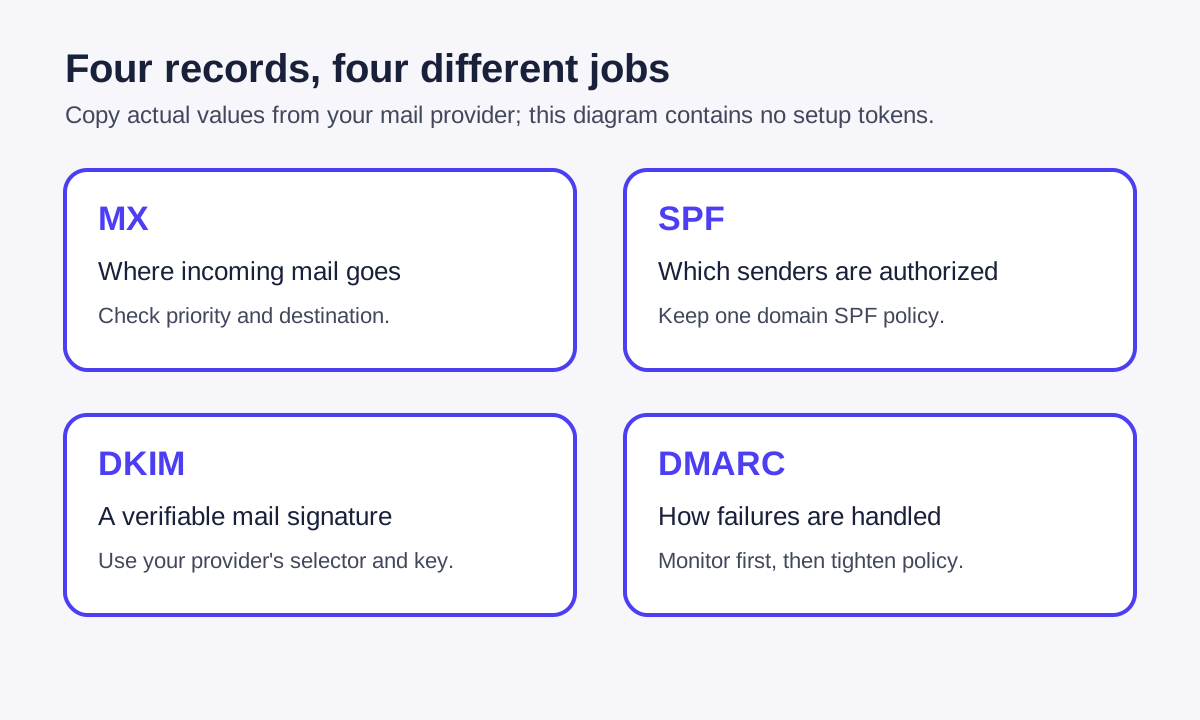
MX records tell other mail systems where to deliver mail for your domain. When you switch providers, these are the records that route new incoming mail. This is why changing MX records first—before mailboxes exist—can create a rough afternoon.
Microsoft’s current setup instructions say its Domain Connect flow can verify ownership and add required DNS records automatically when the registrar supports it. When it does not, you add the records manually. The same page notes that a website continues working where it is; email DNS setup should not require changing your website hosting. Microsoft custom-domain setup
SPF: which services may send mail as you
SPF is a TXT record that lists permitted sending systems. It helps receivers tell whether a sender is authorized for the domain. The trap: there should generally be one SPF record for a domain, not one per service.
Zoho’s SPF documentation says the same thing plainly: only one SPF record should exist for a domain. If the business uses the mail provider plus a billing platform and a newsletter tool, use each vendor’s current instructions to combine the approved mechanisms into one valid record. Do not guess or paste two full v=spf1 records beside each other. Zoho SPF configuration
DKIM: a signed seal on outgoing messages
DKIM adds a cryptographic signature to mail sent by an approved provider. The provider gives you a selector and a public key to publish in DNS, then you turn DKIM on in the provider dashboard after it verifies.
Zoho describes the three broad steps as generating a key, adding the provider-supplied TXT record in DNS, then validating and enabling it. The exact selector and value are unique to your account, which is why a generic article should explain the process but never print a record for someone to copy. Zoho DKIM configuration
DMARC: what receivers should do when checks fail
DMARC connects SPF and DKIM to the visible From address and lets a domain publish a policy plus reporting address. It is powerful, but it is not a first-click setting. Start with visibility, review legitimate sending sources, then increase enforcement only when the reports show you are ready.
Microsoft’s documentation says a message passes DMARC when aligned SPF or DKIM passes; it also explains that a DMARC policy can be none, quarantine, or reject. Microsoft DMARC setup Zoho likewise recommends having SPF and DKIM in place before publishing DMARC. Zoho DMARC policy
The safe order of operations
Here is the order that avoids most unnecessary outages.
1. Pick the provider and create the admin account
Do this before editing DNS. Add the domain in the provider’s admin console. The provider will normally give a domain-verification TXT or CNAME record.
Zoho, for example, supports domain verification by one-click/Domain Connect, TXT, CNAME, or HTML methods. Its documentation says the prerequisite is permission to change DNS. Zoho domain verification
2. Verify that you control the domain
Copy the verification value from your own provider console. Add only that record, wait for it to appear publicly, then click Verify in the provider dashboard.
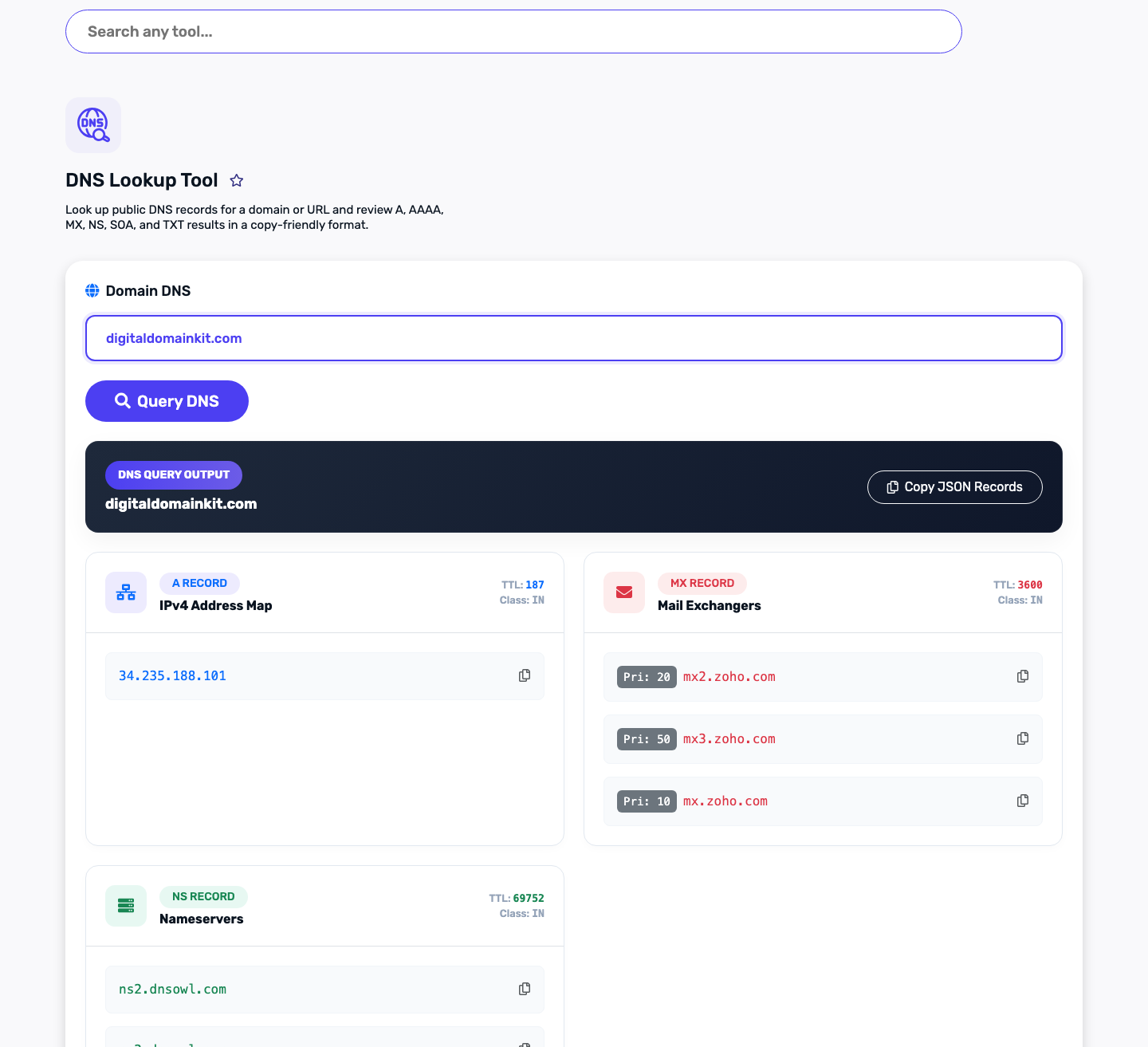
The boring but useful check is a DNS Lookup. Search the domain’s TXT records and compare the public value with the one in the provider wizard. Do not publish the complete token in a screenshot if it is still active.
3. Create users and important addresses before changing MX
Create the real mailboxes (you@, billing@) and decide whether support@ is a mailbox, group, alias, or shared inbox. If you are moving an existing domain, create the users before changing the incoming-mail route.
Microsoft is unusually direct about this: set up mailboxes for people on the domain before adding the Microsoft 365 MX record, so email continues without interruption when delivery moves. Microsoft custom-domain setup
4. Replace only the MX records the provider tells you to replace
This is the actual handoff for incoming mail. Carefully remove or replace the old MX records according to the wizard—not A records, not website CNAME records, and not unrelated TXT records.
Before saving, take a screenshot or export of the old zone. After saving, use MX Lookup to view the public MX answers. Seeing an old answer for a little while can be normal DNS caching; seeing a completely unexpected domain or priority is a reason to stop and check the provider instructions.
5. Add and verify SPF, then DKIM
Follow the provider’s generated instructions exactly. With SPF, find and edit the existing SPF record if there is one. With DKIM, publish the selector record supplied by the provider and complete its verification step.
The most common self-inflicted SPF problem is making two records that both begin v=spf1. The most common DKIM problem is dropping part of a long key or putting the selector in the wrong host field. Copy/paste is your friend here; “tidying” the value often is not.
6. Send a small real-world test
Send from the new address to a personal inbox on a different provider. Reply to it. Check that both directions work and that the visible From address is correct. If the provider offers a built-in domain status screen, wait for it to show MX, SPF, and DKIM as verified.
Zoho’s domain view is an example of the kind of status panel to look for: it can show verification state for MX, SPF, DKIM, and DMARC. Zoho custom-email domain status
7. Add DMARC carefully, then improve it gradually
For a new domain with no other sending services, a monitoring policy can be a sensible starting point. For a busy existing business, look through reports first. You need to account for every legitimate system sending as the domain—newsletters, ticketing, invoices, CRM notifications, and sometimes a website contact form.
Do not jump straight to p=reject because a sample record on the internet did. Microsoft recommends regular review of aggregate reports and explains that policies control what receivers are asked to do with messages that fail. Microsoft DMARC guidance
A DNS example that is deliberately not copy-ready
Type: TXT
Host/Name: _dmarc
Value: [copy the exact policy generated or approved for YOUR domain]
TTL: use the provider’s recommended value
This is the right level of detail for a general guide. The host is commonly _dmarc, but the full value, reporting mailbox, policy, and rollout plan are specific to the domain. Forcing a single “perfect” record onto every small business is how otherwise good advice turns into bad DNS.
Use our tools as a verification layer, not as your source of truth
Your email provider’s admin console is the authority for the records it generated. Digital Domain Kit can help you inspect what is publicly visible after you save them:
- DNS Lookup — check a TXT verification record, SPF, DKIM selector, or DMARC record.
- MX Lookup — confirm the public incoming-mail route.
- DNS Propagation Check — compare public answers while a recent DNS change is settling.
- Email Blacklist Check — an optional later diagnostic, not a replacement for authentication setup.
Keep active verification values and any provider administrator credentials private. A DNS record is public after it is published; access to the account that can change it should not be.
Troubleshooting without panicking
| What you see | First thing to check |
|---|---|
| Provider cannot verify the domain | Is the TXT/CNAME in the DNS host that owns the active nameservers? Is the value exact? |
| Website stopped working after email setup | Check whether an A/CNAME or nameserver was changed by mistake; MX changes alone should not move a website. |
| Mail arrives but outgoing mail lands in spam | Verify SPF and DKIM in the provider console; then investigate DMARC alignment and sending services. |
| SPF error after adding another service | Look for two SPF records. Merge only according to current provider documentation. |
| DKIM cannot verify | Recheck the selector/host and the complete pasted key; allow for DNS propagation. |
| Some people still receive mail at the old provider | Check public MX records, priority, TTL/caching, and the old provider’s transition guidance. |
If the domain already carries payroll, legal, medical, or customer-support mail, get an experienced DNS/mail administrator involved before a migration. This guide helps you ask better questions; it is not an emergency recovery plan.
FAQ
Do I need to change my website hosting to use business email?
No. Email setup usually changes MX and TXT records. Your web host and website records can stay where they are unless you separately move the site.
Can I have more than one SPF record?
Generally, no. Publish one SPF TXT record for the domain and use each sender’s official instructions to combine authorized services correctly.
Should I set DMARC to reject right away?
Not blindly. Make sure SPF and DKIM are configured, identify every authorized sender, and review DMARC reporting before increasing enforcement.
How long does the setup take?
The account steps can be quick. DNS visibility depends on the record, TTL, provider, and caching. Your provider’s verification screen is the best place to see whether its required records are ready.