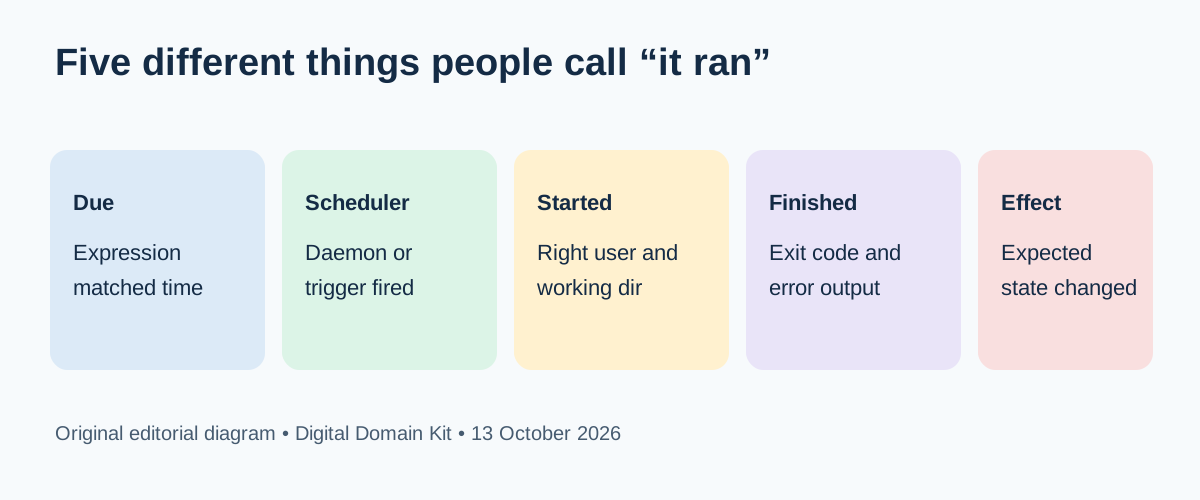
Your dashboard says a report was scheduled for 9:00, but no email arrived. You can run the command manually and it works. Did cron miss the time, did the command fail under cron's user and environment, or did the task finish without producing the expected report? Those are different incidents. A reliable check follows the task through five stages: it was due, the scheduler fired, the process started, it finished, and the intended state changed.
Real troubleshooting threads show why this distinction matters. In a crontab discussion, the questions quickly turned to the job's environment and log location. A Linux admin thread was resolved when commands inside a script were missing from cron's PATH. These anecdotes illustrate questions to test, not a claim that environment is always the cause. The scheduler, operating system, and application can each fail in different ways.
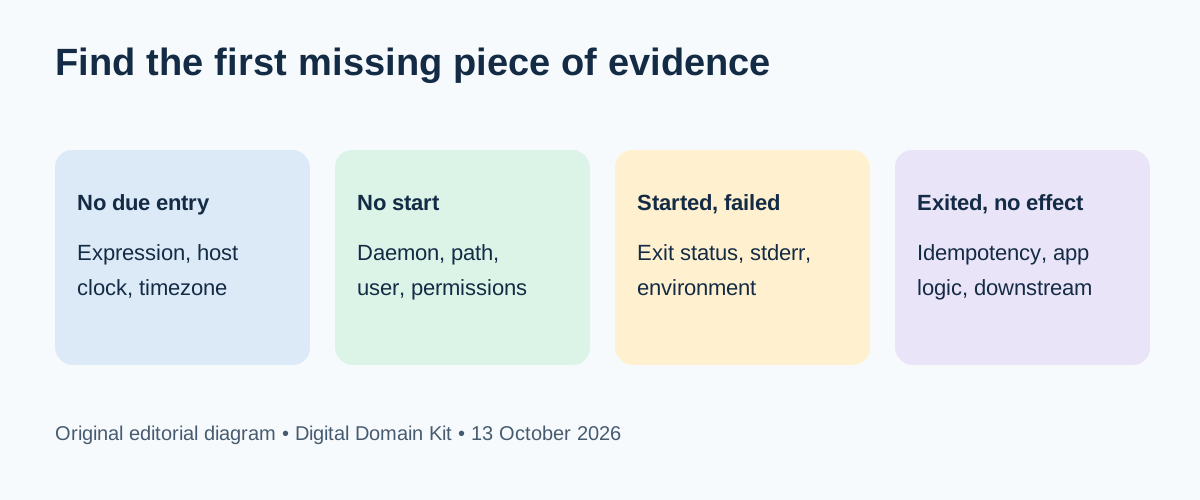
Short answer: Record the expected run time in the server's timezone, confirm the exact installed schedule, find evidence that the scheduler invoked the command, capture its exit status and output, then verify the business result independently. If the first missing evidence is the scheduler event, inspect timing and daemon setup. If the command started but failed, inspect user, working directory, environment, permissions, and dependencies. If it exited successfully but nothing changed, inspect application logic and downstream systems.
Define what “ran” must mean for this job
A cron line matching the current minute does not mean the job completed. A log entry saying a shell was launched does not mean the application succeeded. Exit code zero may mean the program found no work, not that a report was sent. Decide in advance what successful output looks like: one report row written, a message ID from the mail provider, an updated sitemap, a backup artifact with a plausible size, or a timestamped status record. Use a success signal that can be checked without rerunning or duplicating the task.
For an existing job, collect the cron expression, installed user, server name, timezone, command, working directory, output destination, and expected side effect. Ask whether the task is safe to retry. A billing, publishing, or email job may create duplicates if you simply invoke it again. If retry safety is unknown, investigate read-only evidence first and involve the application owner before manual execution.

Check the installed schedule and the clock
Do not debug a schedule copied from a document if the production host has a different line. For a user crontab, inspect it with crontab -l while acting as the intended user. For system-managed entries, inspect the authorized file in /etc/crontab or /etc/cron.d/. The Linux crontab manual documents the five time fields and notes that system crontabs include a user field, unlike a per-user crontab. A line that is valid in one location may be malformed in the other.
Use the Digital Domain Kit Cron Generator to check the field order and explain a simple expression before you change it. The browser tool builds an expression; it does not install anything on your server or guarantee how every cron implementation interprets it. For a schedule such as 0 9 * * 1-5, confirm whether “9” means the host's local 9:00 or a configured timezone, and whether holidays matter. The tool is a sanity check, not a replacement for the production scheduler's own next-run view.
Check the server's current clock and timezone using approved operational access. Compare that with the time in the incident report. crontab(5) explains that daylight saving transitions can cause a local time to be skipped or repeated; an operation scheduled in the missing hour may not run, while one in a repeated hour may run twice. Do not “fix” such behavior by changing a job blindly. Decide whether the business requirement is local wall-clock time or a stable UTC interval, then configure and test that choice in the actual scheduler.
Find evidence the scheduler fired
Inspect the cron daemon or service status and logs for the incident window. Log destinations differ by distribution and service manager; common places include system journals or syslog files. Search for the exact command or entry and note the host, minute, and user. If there is no event, inspect whether the daemon is active, whether the file was loaded, whether its permissions and syntax meet your system's requirements, and whether the scheduled minute actually occurred in the server's timezone. Do not infer a daemon failure merely because one expected application log entry is missing.
For a Laravel application, there is an extra layer. Laravel's scheduling documentation describes a server cron entry that invokes php artisan schedule:run every minute; Laravel then decides which application tasks are due. If the system cron entry fires but the application task does not, inspect the deployed application schedule and its due events. Laravel offers php artisan schedule:list to inspect tasks and next run times. Check the framework version and deployment path before using documentation examples, because your application may have custom commands or a different release directory.
A task may also be intentionally skipped because of a filter, maintenance condition, overlap prevention, or multi-server coordination. Laravel documents withoutOverlapping and onOneServer options; these depend on locks and cache configuration. A stale lock can suppress a run, but clearing locks without understanding a still-running process risks duplication. First establish whether the previous task is active and which cache store coordinates the lock. Then follow the framework's documented recovery path with the application's owner.
Find evidence the command started and finished
Cron often sends output by mail or redirects it to a file, depending on configuration. crontab(5) documents output mail behavior and environment settings. If output is sent to an unavailable mailbox, errors may be hidden from the team even while the scheduler works. Make stdout and stderr observable in an approved destination, with log retention and access controls. Record the process start time, exit status, duration, and a non-sensitive job identifier. Do not log secrets, full customer data, or authentication tokens just to make a task easier to debug.
When a command works manually but not under cron, compare the contexts. Cron may not load the login shell's profile, so PATH, language runtime, credentials, and other variables can differ. Relative paths resolve from the job's working directory, which may not be the project directory. The installed cron user may lack permission to read a config file or write an output directory. Dependencies such as the database, remote API, or mail provider may be unavailable at run time. Test these hypotheses using a safe diagnostic command under the same user and environment, not by repeatedly triggering the production side effect.
| First missing evidence | Likely layer | Next check |
|---|---|---|
| Time never matched | Expression or timezone | Installed line and host clock. |
| No scheduler event | Daemon or entry loading | Service status and system log. |
| Event, no process | Command path, user, permissions | Exact command and account context. |
| Process, nonzero exit | Runtime or dependency | Stderr and application log. |
| Zero exit, no outcome | Application or downstream system | Business-state evidence and API result. |
The table is a triage order, not a diagnosis. A log pipeline can fail independently of the job, and a remote system can accept a request but process it later. For a high-impact task, build a durable run record in the application itself: start, completion, outcome count, error category, and correlation ID. That gives a stronger answer than an operating-system line saying the shell launched.
Verify the expected effect independently
For a report job, check the report artifact and delivery provider; for a backup, check the artifact and restoration process rather than only its filename; for a publisher, check the public page and index; for a cleanup, compare counts before and after. Choose an outcome that the job cannot fake by merely printing “success.” If the task delegates work to a queue, a scheduler exit may only mean the queue message was accepted. Verify the worker processed it and the resulting state is correct. Record both the scheduled time and completion time, because long or delayed runs can look like missed runs when only one timestamp is visible.
If the job genuinely missed a publication or customer action, decide whether catching up is safe. Some tasks should replay every missed interval; others should run once using the current state; some should not be replayed at all. Document this choice as part of the task design. A manual retry should use the application's supported command or admin flow, with a dry-run option when available, not an improvised database edit. Confirm whether the task has idempotency protection, especially for billing, notifications, and content publishing.
Prevent the next silent miss
Give critical tasks an expected completion window and an alert on a missing successful outcome, not merely an alert on daemon uptime. Include the job's owner, runbook, last successful result, and escalation path. Keep time in an unambiguous format with timezone and UTC offset. Review alerts after deployments, clock changes, queue maintenance, and infrastructure moves. If the scheduler runs on multiple servers, document whether one node or all nodes should execute the task and how overlap is prevented.
For Laravel, keep the every-minute server trigger and application definitions under deployment review. For plain cron, keep the crontab or /etc/cron.d/ entry versioned or at least recorded in change management. Whenever a schedule changes, verify the installed line, observe one expected run, and check the actual side effect. A cron generator can help a human read syntax, but the production environment remains the source of truth.
Final missed-run checklist
- Define the exact expected result and whether retry is safe.
- Capture the installed expression, user, command, host, timezone, and working directory.
- Confirm the scheduled minute existed and the scheduler was active.
- Locate evidence that the scheduler invoked the job.
- Check process start, exit status, duration, stdout, stderr, and application logs.
- Verify the downstream effect separately from the scheduler log.
- Record root cause, catch-up decision, and an alert on future missing outcomes.
Sources and review method
Reviewed October 13, 2026. Cron syntax, environment, output, and daylight-saving behavior were checked against crontab(5). Framework-specific examples were checked against Laravel 12 scheduling documentation; use the documentation matching your deployed version. Reddit threads identified common questions but were not treated as authority. We did not inspect a user's server, execute a scheduled task, or show a real log. Both diagrams are original editorial aids.
If a command or explanation needs correction, send a correction with the platform, scheduler version, and documentation link. Remove secrets and customer data from any logs before sharing.