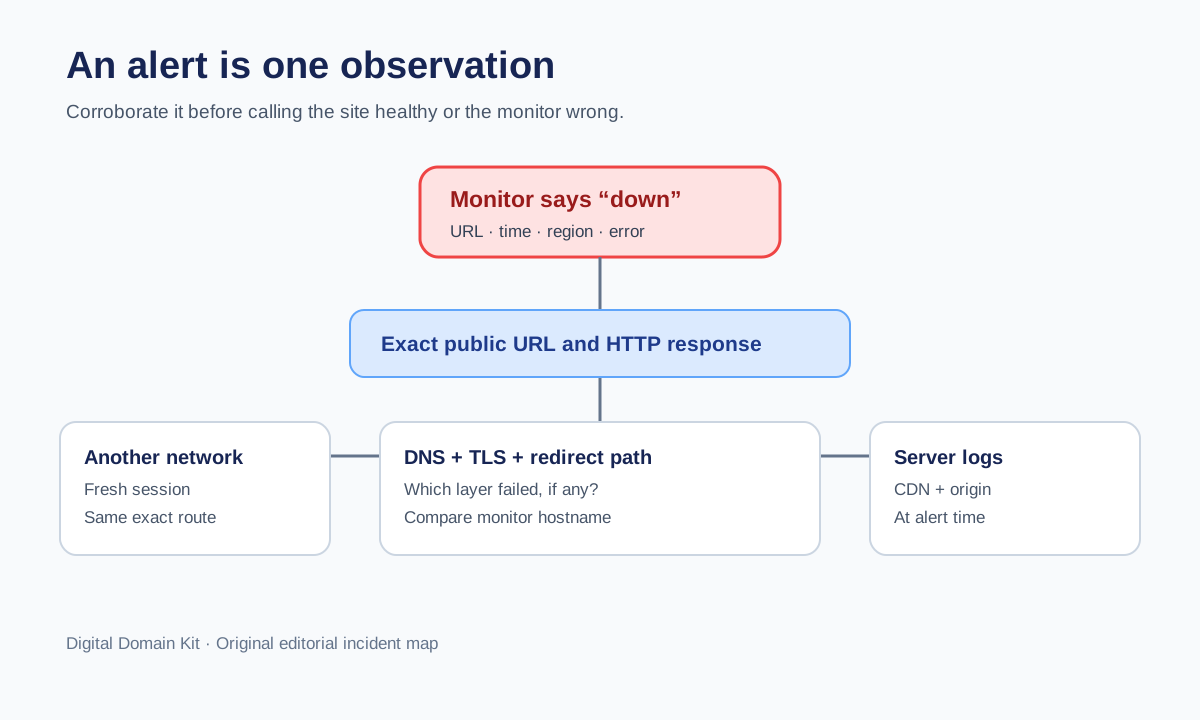
An alert says your website is down. You open the homepage and it loads. It is tempting to mark the alert as a false positive and get back to work. That may be right, but one successful browser request cannot prove the alert was wrong. The outage may have been brief, regional, route-specific, or limited to a network you are not using. Conversely, a monitor may be blocked by a firewall, follow a stale redirect, or check the wrong URL. The useful response is to preserve evidence and narrow the disagreement.
This workflow is for website owners and operators investigating their own public services. It is not a substitute for a managed incident process or a promise of perfect uptime. A forum thread in r/sysadmin about numerous apparent false-positive alerts shows why teams want a way to distinguish monitor trouble from site trouble. The thread is a prompt for the topic, not evidence about your system. Your own responses, logs, and independent vantage points have to decide the case.

Preserve the alert before changing anything
Save the monitor’s exact URL, time zone, alert timestamp, check location, error category, response status if recorded, duration, and any screenshot or response body it captured. Record the monitor configuration: HTTP method, timeout, redirect-following setting, expected text, expected status, and whether it uses IPv4 or IPv6. Do not rewrite the configuration first and then wonder what it observed. The initial record is often the only evidence of a short-lived incident.
Put the time in UTC alongside your local time so it can be compared with server, CDN, and DNS logs. A dashboard graph may aggregate five-minute checks into a wider interval, and an email may arrive after the underlying condition has recovered. “It works now” is different from “it worked when the monitor checked.” Look for a second alert or recovery notice and record their times separately.
Confirm the exact URL and expected outcome
A monitor should target a meaningful URL. If it checks http://example.com/ while visitors use https://www.example.com/, the result depends on several redirects and host configurations. Follow the exact monitored URL with the Redirect Checker and record each hop and final destination. Use the HTTP Status Code Checker on the final public URL. A monitor that expects only 200 may flag a legitimate redirect as down if it does not follow redirects; a monitor that follows anything may report healthy after reaching an unrelated login or parking page.
Check what “healthy” means for this service. A 200 status on a maintenance page is not a healthy application. A 404 on a deliberately missing path is correct for that path, though not for the homepage. A 503 indicates the server is temporarily unable to handle the request; 429 indicates the client was rate-limited. MDN’s HTTP status references help interpret these codes, but the business impact still depends on the URL and the users affected.
If the monitor searches for expected text, verify whether that text still appears in the delivered HTML. A redesign, localization change, A/B test, or cache variation may remove the phrase while the site remains usable. Conversely, text appearing in a cached shell does not prove that forms or data loads work. Record the expected assertion and why it represents the user journey you intend to monitor.
Test from another network and another route
Open the exact URL from a different network, such as mobile data with Wi-Fi disabled. If practical, ask a colleague in another region to test. Record the network and time rather than relying on “works for me.” A CDN can have an unhealthy edge in one region while serving your home connection normally. A firewall can allow local visitors while blocking the monitor’s cloud provider. DNS answers can also differ among resolvers or during a migration.
Test one deep page or core function in addition to the homepage. A cached homepage may load while the application origin, login, checkout, or tool endpoint fails. If the site has an API-backed form, try a safe test submission and confirm its receipt. If only the monitor’s path fails, the issue may be a route, expected-text rule, authentication change, or robot protection rather than a site-wide outage. If many routes fail from one region, look toward network or edge delivery.
Do not assume two browsers on the same Wi-Fi represent independent evidence. They share DNS, ISP, router, and often CDN path. An incognito window can help remove cookies and browser cache, but it is still the same network. Label each check by vantage point and state whether it used a fresh session. This makes the incident record useful when the problem does not reproduce later.
Separate DNS, TLS, HTTP, and application failures
Classify the monitor error before choosing a fix. A DNS failure means the monitor could not resolve the hostname or got an unexpected answer. Use the DNS Lookup Tool to record current public records and compare with the authoritative zone you control. During a recent DNS change, a DNS Propagation Check can show differences among public resolvers. A DNS answer, however, does not prove the server behind it can serve a page.
A TLS error is different. The hostname may resolve and the server may answer, yet the certificate may be expired, issued for a different name, or not delivered by a particular edge. Check the public hostname with the SSL Checker and note whether the reported certificate corresponds to the monitor’s exact hostname. A successful browser connection to the apex does not validate www if the monitor uses www, and vice versa.
An HTTP error means a web server responded. Record the status and body. A 503 may reflect overload or maintenance; a 429 may mean the monitor is being rate-limited; a 403 may mean a WAF or access rule denied that check source. A timeout can occur before any HTTP response, so do not invent a status code for it. An application failure may return 200 yet render an error message or fail when a user submits a form. Each category suggests a different owner and evidence source.
Compare with edge and origin logs
If you have access, search CDN and origin logs around the alert time for the monitor’s requests. Match timestamps, requested host and path, response status, cache status, upstream status, and request identifiers if available. A request at the CDN but not the origin may have been served or blocked at the edge. A request reaching the origin with a 503 points to a different failure. No visible request can mean the monitor failed earlier at DNS or TLS, used a different IP, or your log sample is incomplete.
Be careful about attributing a monitor request solely by IP address. Monitoring services may use changing address pools. Prefer the provider’s documented check locations, user agent where reliable, and request IDs. Do not whitelist an entire unknown network just to silence alerts. If a firewall is intentionally protecting the service, configure a suitable health endpoint or approved allowance with security review. The monitor should represent a real user path, not become a special backdoor.
Look at ordinary user signals too: support contacts, form submissions, error-rate graphs, and application logs. An alert without user complaints is not proof of no impact, especially for a low-traffic site. Conversely, a spike of complaints from one region can validate a partial outage even when the monitor recovers. Record both positive and negative evidence, and state what cannot be known from available logs.
Investigate the monitor itself
A monitor is another service with its own failures. Check its provider status page and recent incident notices. Compare with a second independent check if one is already configured; do not rush to create multiple identical monitors from the same provider and call that independent evidence. Review timeout and retry settings. An unrealistically short timeout can alert on normal latency spikes. A long timeout can hide a page that is unacceptably slow for real visitors. Set thresholds based on the site’s user expectations and measured baseline.
Check redirects and authorization. A monitor may stop at a 301 that a browser follows automatically, or may follow a 302 into a login page and report success. A newly enabled bot challenge may affect monitor probes differently from normal users. An expected-text test may fail because the text moved into client-side rendering. These are configuration issues, but they should be fixed transparently so the monitor still detects genuine failures.
Consecutive failure requirements can reduce noise from one transient check. Cloudflare’s monitoring documentation, for example, describes how a monitored endpoint can be declared healthy or unhealthy after a configured number of successive results. The right threshold depends on how quickly you need to know about a real outage and how much false-alarm noise your team can handle. Record the choice and periodically review missed incidents as well as noisy alerts.
Make an incident disposition, not a reflexive dismissal
At closeout, label the alert with one of four outcomes. Confirmed service incident: users or multiple vantage points were affected; document duration and root cause. Partial or regional incident: some networks or routes failed; document the scope and remaining uncertainty. Monitor configuration issue: the check had a wrong expectation, blocked route, or misleading target; update it and test that it still detects an intentional safe failure in staging. Inconclusive: evidence is insufficient; improve logging or monitoring before the next event.
Do not turn “inconclusive” into “false positive” simply to keep the uptime report clean. A brief outage may leave little evidence, especially without logs. If the monitor has repeated unexplained alerts, preserve examples with exact times and open a support case with the provider. If only one location fails, ask the provider for its check trace while independently checking regional access. If a real incident occurred, communicate its effect honestly rather than arguing about whether the monitoring vendor was perfect.
Improve the next alert
Choose a stable public URL whose response reflects the service users care about. Keep a separate deeper functional check if a homepage can be cached independently of the application. Make the alert include the exact URL, check location, observed error, and timestamp. Give responders a runbook link to DNS, TLS, redirect, and application evidence. Set a reasonable retry policy, and ensure recovery notifications are tested as well as failure alerts. After each incident, adjust only the setting that created a proven blind spot or noise source.
The core lesson is humility about vantage points. A monitor can be wrong; your browser can also be unrepresentative. The fastest way to resolve the disagreement is to line up exact URL, exact time, independent network, delivered status, DNS and TLS state, and server-side evidence. That is enough to turn “it works for me” into an actionable conclusion.
Sources and scope
For HTTP meanings, see MDN’s references for 503 Service Unavailable and 429 Too Many Requests. Cloudflare’s monitor documentation describes consecutive health-check thresholds as one implementation example. An r/sysadmin discussion of apparent false-positive uptime alerts motivated this triage angle, but your incident classification must use evidence from your own site.