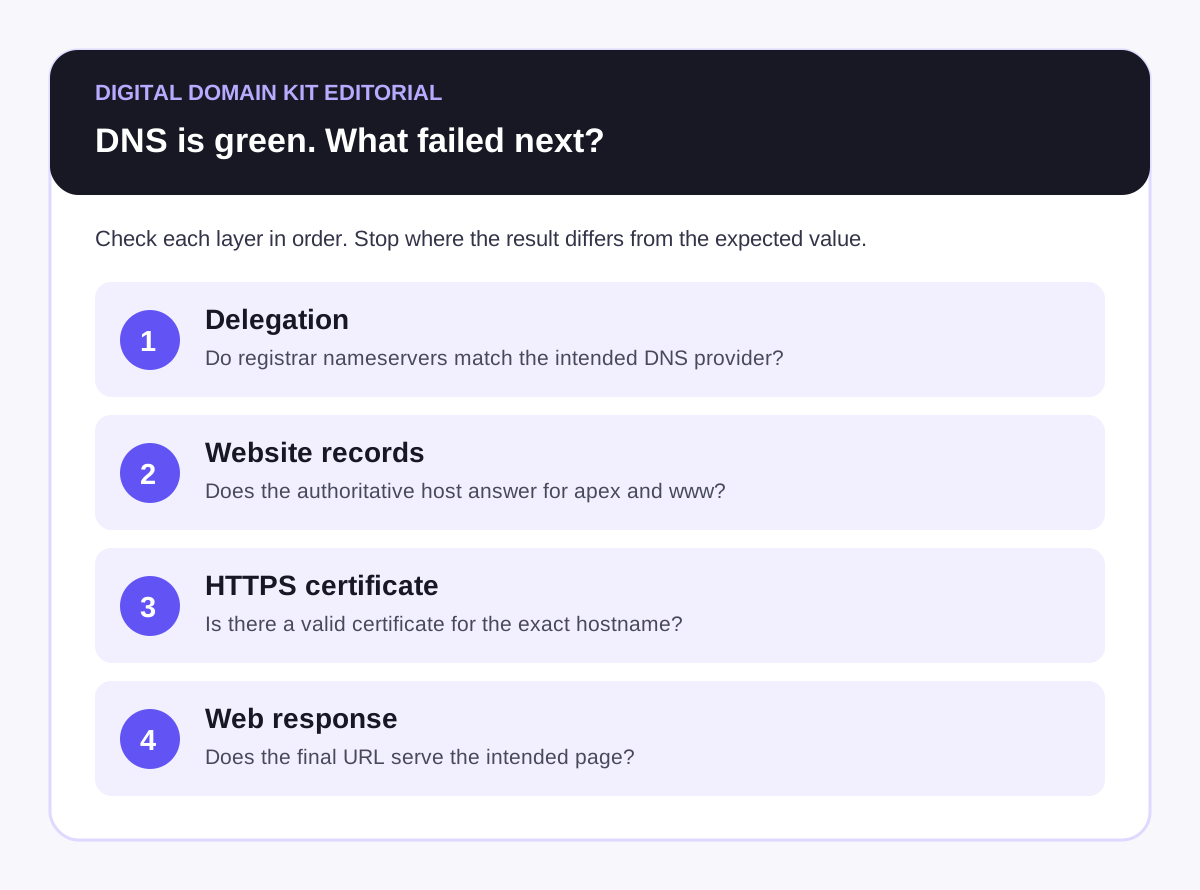
You changed the nameservers, the propagation checker shows green, and the website still will not open. At that point, waiting another day may feel like the only option. It is not the first question to ask. A green nameserver result tells you something about where DNS questions are being sent. It does not tell you whether that DNS host has the right website records, whether the web host recognizes your domain, whether HTTPS has a working certificate, or whether the application is serving a page.
A site owner describing this exact problem in r/webhosting had apparently complete nameserver propagation and working email, yet the new site remained unavailable. Their update said the missing piece was an SSL certificate that the site provider had not issued. That is one person’s experience, not a diagnosis for your site. It illustrates why you need to locate the failed layer before changing more DNS settings.
Short answer: Check the exact hostname that fails. Confirm the registrar delegates to the intended DNS provider, confirm that provider returns the right A, AAAA, or CNAME record, then test HTTPS and the final web response. If authoritative DNS is correct but HTTPS fails, investigate the certificate or hosting connection. If the site returns an error page or wrong site, DNS may have done its job already.
First, write down what “down” actually means
Do not begin by editing a record. Open the failing URL and save the exact browser message, including whether the URL starts with http:// or https:// and whether it uses www. “The site is down” can describe at least four very different results: the name does not resolve, the browser cannot connect, the browser rejects the certificate, or a server responds with an error page. Each points to a different owner and next action.
Check both example.com and www.example.com, substituting your own domain. They are separate DNS names. One can work while the other has no record or lacks certificate coverage. Also record whether every visitor is affected or just one network. A single phone on mobile data can provide a useful second view, but it is not proof of global health.
| What you see | Likely layer to inspect first | Useful next check |
|---|---|---|
| “Domain not found” or NXDOMAIN | DNS records or a cached negative answer | Query the exact name and its authoritative server. |
| SERVFAIL | DNS validation or authoritative DNS | Check DS/DNSSEC and nameserver delegation. |
| Certificate warning or HTTPS handshake failure | Certificate and domain connection | Inspect the certificate and provider status. |
| HTTP 4xx, 5xx, or a different website | Web host, redirect, or application | Inspect response headers and the host’s domain assignment. |
This table is a triage aid, not a verdict. A mistyped hostname can produce NXDOMAIN; a cached answer can differ by resolver; a proxy can return its own error page even when the origin is the real problem. Preserve the exact evidence before you contact a provider.
Layer 1: Is the domain delegated to the DNS provider you expect?
Nameservers are the directory that tells the internet which DNS provider is authoritative for a domain. The registrar publishes the delegation. The DNS provider then answers record questions. Changing nameservers at the registrar does not automatically create website records at the new provider. This distinction is the whole reason a nameserver propagation check can look successful while a site remains unavailable.
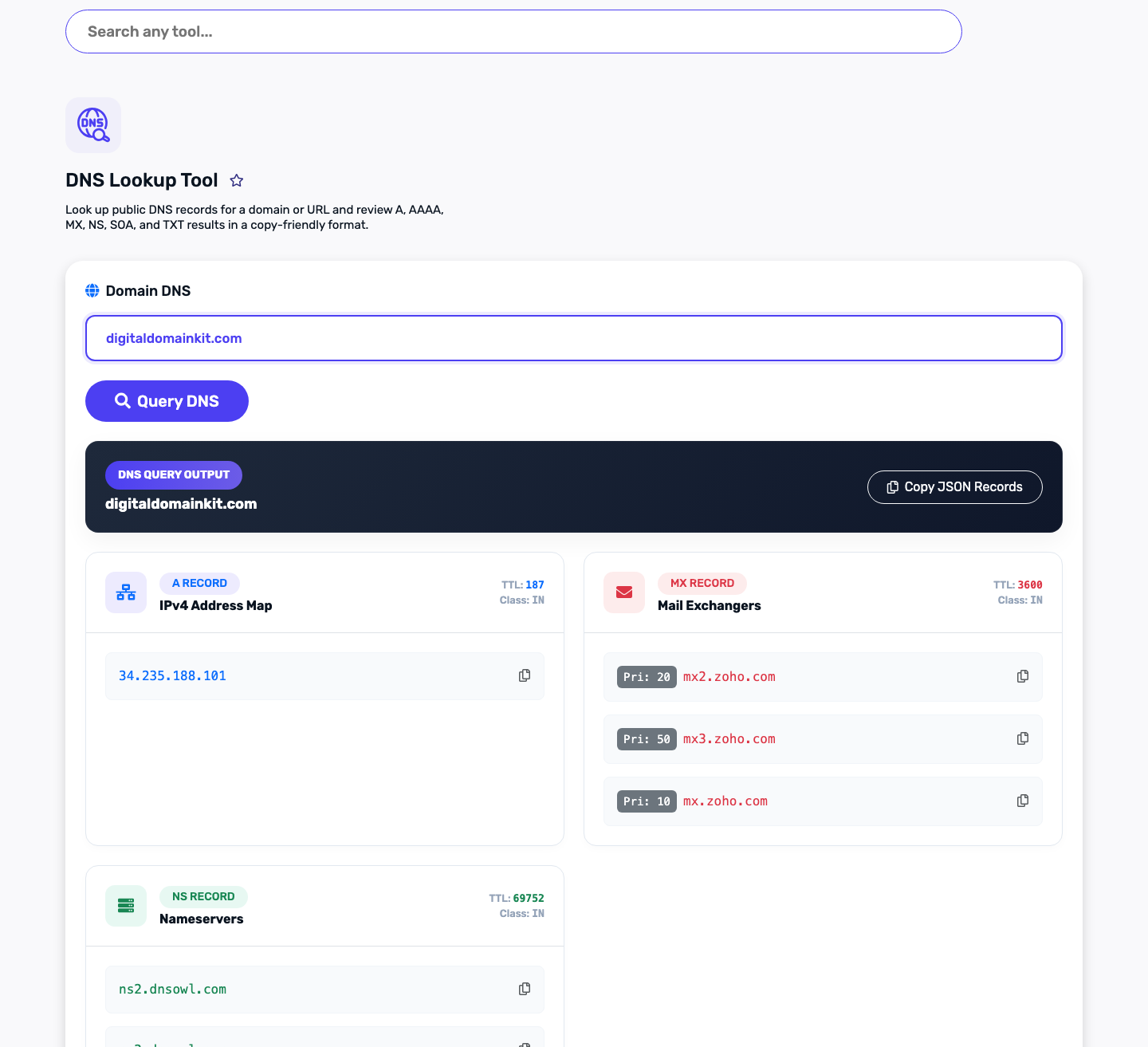
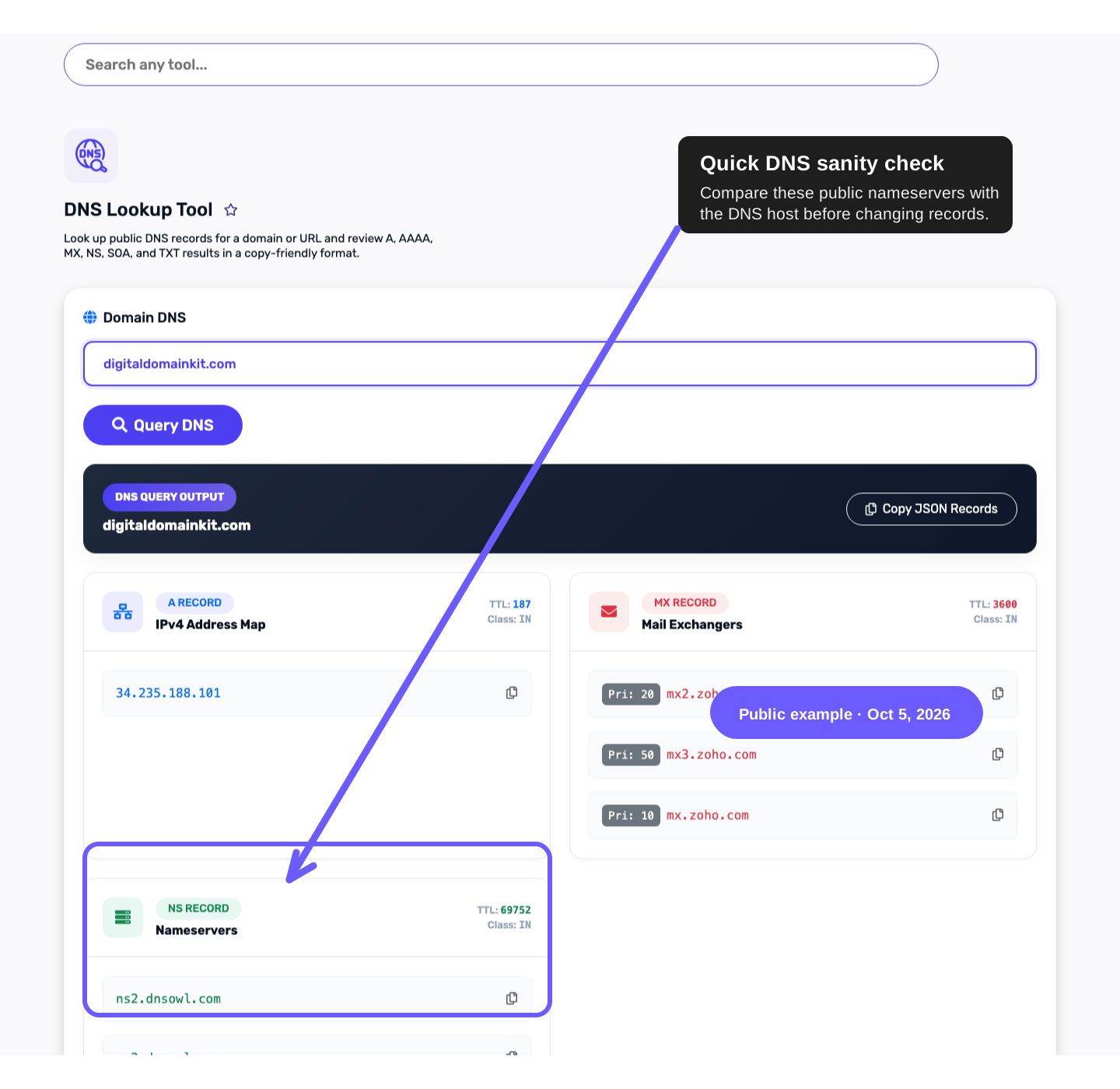
Start with the Digital Domain Kit DNS Lookup and request NS records for the base domain. Compare the public results with the exact nameserver pair or set shown in your DNS provider account. The annotated image below is a real public lookup of digitaldomainkit.com captured for this guide; it is an example of where to read NS results, not evidence about your domain or a guarantee that your site is configured correctly.
If the names differ, return to the registrar: verify the change was saved on the correct domain, look for a confirmation email or approval step, and check that no old nameservers remain. Cloudflare’s nameserver troubleshooting guide lists those checks and explains how a stale DNSSEC DS record at the registrar can break validation after a provider move. A DS record is part of the security chain that validates DNS answers. Do not remove one merely because it exists; compare the registrar’s DS settings with the DNSSEC instructions from the provider that is supposed to be authoritative. If you are moving to Cloudflare from a different signed DNS provider, follow its documented migration sequence.
If your provider shows a “pending” or “not connected” status despite matching registrar nameservers, collect both the public NS answer and the provider’s assigned nameservers for support. If you delegated a subdomain rather than the whole domain, the NS change belongs in the parent DNS zone, which is a different workflow. Cloudflare’s nameserver documentation makes that distinction explicit.
Layer 2: Does the authoritative provider return the right website records?
Once delegation is right, query the exact failing hostname for A, AAAA, and CNAME records. An A record points a name to an IPv4 address; an AAAA record points to IPv6; a CNAME aliases one name to another. Your host or website builder should tell you which records to publish. Copy those values exactly. Do not assume that an old record copied from the previous host remains valid after a move.
Check the base name and www separately. A common pattern is a working apex record and a missing www record, or the reverse. Cloudflare’s general DNS troubleshooting guide specifically calls out missing apex and subdomain records. It also explains negative caching: if a resolver asked for a name before the record existed, it may temporarily retain the “does not exist” answer. Lowering the new record’s TTL after the fact does not erase that cached answer.
For a command-line check, run the following after substituting your real hostname and the authoritative nameserver shown in your provider account. The @ syntax queries that named server directly, bypassing a recursive resolver’s cached answer:
dig example.com NS
dig example.com A
dig www.example.com CNAME
dig @your-authoritative-nameserver.example www.example.com A
Do not paste a made-up nameserver into the last command. Use one assigned to your domain. If the authoritative answer is missing or wrong, fix the record in the active DNS account. If the authoritative answer is correct but one public resolver still returns an older answer, wait for that resolver’s cached entry to expire and recheck. Cloudflare describes this authoritative-versus-cached comparison as a way to separate an unpublished record from a stale resolver response.
Pay special attention to AAAA records. A hostname with both IPv4 and IPv6 answers may reach different destinations depending on a visitor’s network. If your host gave you only an A record but an old AAAA record still points elsewhere, ask the host whether that IPv6 record is intended. Do not delete records blindly: mail, verification, and other services may share the zone, even though website A/AAAA/CNAME records are the immediate focus here.
Layer 3: Can the browser establish HTTPS for that hostname?
Correct DNS can take a visitor to the right platform while the browser still refuses to display the page. HTTPS requires a valid certificate for the hostname the visitor requested. Check the exact browser error before trying to “fix DNS” again. A name mismatch, expired certificate, or failed TLS handshake is a different problem from NXDOMAIN.
Use the Digital Domain Kit SSL Checker to inspect the public certificate for the hostname, then compare its covered names and expiration with the address in the browser. A public checker cannot see the provider’s internal issuance queue, so a failed or absent certificate should also be checked in the website builder or hosting control panel. The Reddit example above ended when the provider issued the missing SSL certificate; that outcome should not be generalized to every “propagated but down” report.
Cloudflare’s SSL troubleshooting documentation notes that HTTPS browser warnings can appear while an edge certificate has not been provisioned and that certificate coverage depends on how a hostname is configured. If Cloudflare is your proxy, also distinguish the visitor-to-Cloudflare certificate from the Cloudflare-to-origin connection. Its error-response reference separates origin connection errors from SSL errors such as 525 and 526. Your provider may use different messages, but the same question remains: which HTTPS connection is failing?
If the certificate is missing or the platform says the domain is unconnected, check the platform’s domain-assignment status and its own connection instructions. Record the failing hostname, browser error, and DNS answers before opening a support request. Avoid turning off HTTPS as a permanent workaround. If the site previously worked, also check whether a renewal failed, whether the certificate covers www, and whether a redirect sends visitors to a hostname outside its coverage.
Layer 4: Does the server actually deliver the intended website?
If DNS resolves and HTTPS succeeds, request the page itself. Open the site in a browser and note the final URL. A 200 response with the wrong homepage can mean the domain is assigned to the wrong site, the old host is still answering, or a redirect sent you somewhere unexpected. A 404 can mean the platform has no matching page. A 500-class error points toward the application, server, or proxy path. None of those is solved by repeatedly changing the registrar’s nameservers.
Run the Digital Domain Kit Redirect Checker on both HTTP and HTTPS versions of the failing URL. Read every hop and the final destination. If the chain points to an old domain, a preview subdomain, or the wrong www variant, correct the redirect where it is configured. You can also inspect the response in a terminal:
curl -I https://example.com/
curl -IL https://www.example.com/
The first command shows response headers for one request; the second follows redirects. Some applications handle HEAD differently from a normal browser GET, so verify the page in a browser when the result is surprising. A 200 status is also not a guarantee that the intended content loaded: a generic “site not configured” page can return 200. Compare the actual page, title, and final host with what you expected.
If you use Cloudflare and see a branded 521 or 522 error, its 521 guidance and error reference point toward the connection between Cloudflare and the origin server. Give your host the error code, time, and the domain being requested. If a builder displays its own “domain not connected” page, check which site the domain is attached to in that builder’s settings. A successful DNS answer only sends the visitor to the platform; the platform still has to route the hostname to your site.
When should you wait, and when should you ask for help?
Waiting is reasonable when the authoritative DNS answer is already correct, different recursive resolvers still show old answers, and the change falls within your provider’s documented cache or nameserver-update window. Cloudflare says some registrars take up to 24 hours for nameserver changes, while its migration guidance allows that resolver behavior can vary. That is not a universal promise that every failure resolves itself by a deadline.
Waiting is less useful when the authoritative server has no expected website record, the registrar is delegating to the wrong nameservers, DNSSEC validation returns SERVFAIL, the hosting panel has not attached the domain, or the certificate status is failed. Those conditions need a configuration change or provider help. Likewise, a web server’s persistent error response deserves server-side investigation. Avoid making several changes at once; otherwise you lose the ability to tell which one helped.
When contacting support, send a compact report: exact failing URL; approximate time and region; exact browser or HTTP error; public NS, A/AAAA/CNAME answers; the authoritative provider’s expected record values; and whether www differs from the apex. Include a screenshot of the error if it helps, but remove account IDs and private data. Ask one precise question, such as “The authoritative A record matches your setup guide, but HTTPS shows no valid certificate for www; is issuance pending or blocked?” That is more actionable than “DNS still does not work.”
Final check before calling the move complete
- Open the intended HTTPS URL and its
wwwcounterpart. Record the final URL and confirm both land on the intended site. - Confirm registrar nameservers match the intended DNS provider and that DNSSEC settings follow that provider’s instructions.
- Query the authoritative provider for the exact apex and
wwwrecords; compare them with the host’s current connection instructions. - Inspect the public certificate and verify coverage for every hostname visitors use.
- Follow the redirect chain and confirm the final page is the real site, not a generic setup page.
- Check one important action, such as a contact page or login, after the homepage works. Working email alone does not prove the website path is healthy.
Keep the DNS answers and error notes from this check. They become a useful baseline if the site breaks after a later host move. For corrections to this guide or a broken example link, use the Digital Domain Kit contact page and include the section that needs updating. Do not send private DNS account access or credentials.
Sources and review method
This guide was researched against Cloudflare’s public documentation for nameserver delegation and DNSSEC, DNS records and resolver caching, certificate troubleshooting, and proxy error categories. The r/webhosting discussion informed the reader scenario; it was not used to establish technical rules. The image of Digital Domain Kit’s DNS Lookup is a real public example captured October 5, 2026. No reader domain, private provider account, live migration, or certificate issuance process was tested for this guide. Recheck provider-specific instructions when a platform changes its DNS or certificate workflow.