You submitted a sitemap. The file opens in a browser. Yet a page you care about still does not appear in search, or Search Console says the sitemap could not be fetched. Those two symptoms feel related, but they may describe different failures. A sitemap can be available while a particular page is inaccessible, excluded, duplicated, or simply not selected for indexing. Search Console can also report a sitemap fetch problem while some pages are indexed through links.
This guide is for a site owner or editor who can inspect their own site and its Search Console property. The aim is a useful diagnosis for one important URL, followed by a small repeatable check for the rest of the site. It does not promise indexing or a particular ranking. Google's crawling and indexing FAQ says a sitemap helps discovery but does not guarantee indexing.
The short answer
Start with the exact page address you want visitors to find. Check four things in order: the sitemap response, the URL listed in that sitemap, the page's own response and indexing signals, and the reason shown in Search Console URL Inspection. Fix a concrete failure at the earliest stage that fails. If all four look healthy, allow time for crawling and assess whether the page gives readers something distinct and useful. Re-submitting the same unchanged sitemap repeatedly is not a repair.
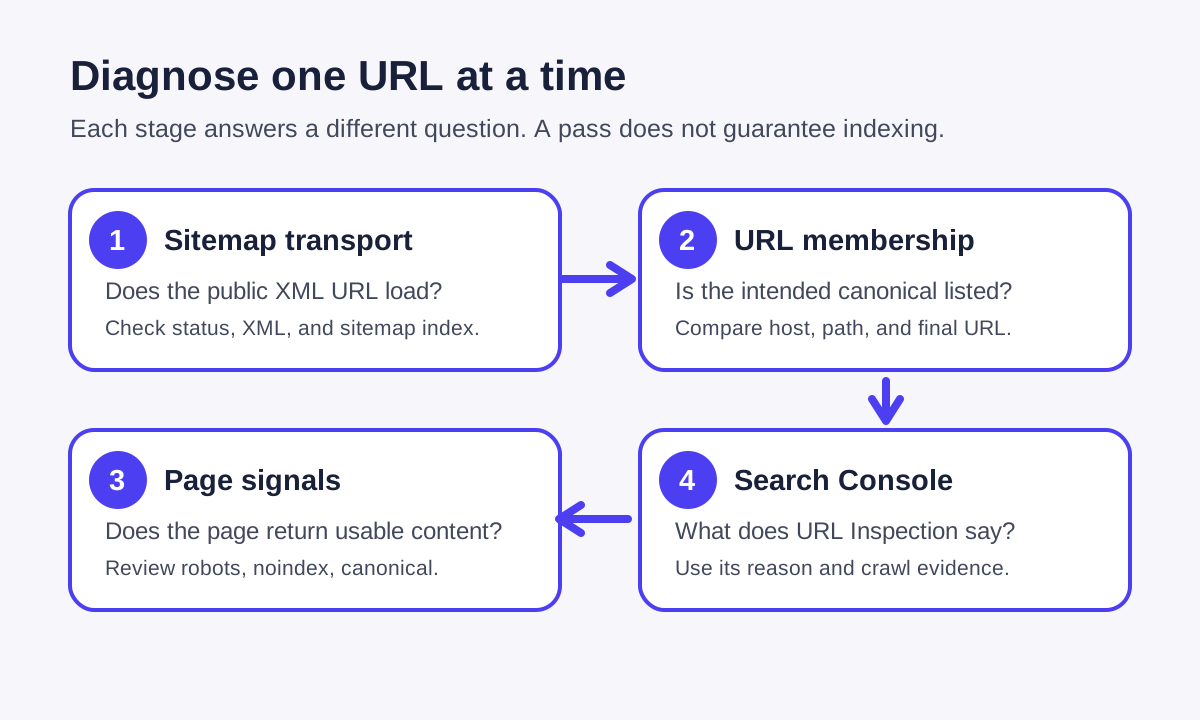
Choose one URL and write down the expected result
Pick an important published page, not an unpublished draft or a search-results page. Record its intended HTTPS URL, the title a reader sees, the canonical URL in its HTML, and the link that should lead to it from navigation or another page. This short record prevents a common mix-up: a sitemap contains /guides/example while the page redirects to /blog/example, or it contains the www host while the site canonically uses the bare domain.
If a page has moved, write down both the old address and the intended final one. Only the final canonical page belongs in the sitemap. Use the Redirect Checker on the old and new addresses when the route is uncertain. A redirect to a different page may be intentional, but including the old address in the sitemap obscures what you intend search engines to discover.
Stage 1: establish that the sitemap itself is reachable
Open the sitemap URL from a logged-out browser window. It should be publicly reachable at the exact address submitted to Search Console. If the server redirects, record the final address and submit that address. If the response is a login page, HTML error page, blocked request, or intermittent 5xx, repair delivery before thinking about individual URLs. Search Console's sitemap report may reflect what Google encountered at a particular time; your current browser result is a fresh observation, not proof of what happened during an earlier crawl.
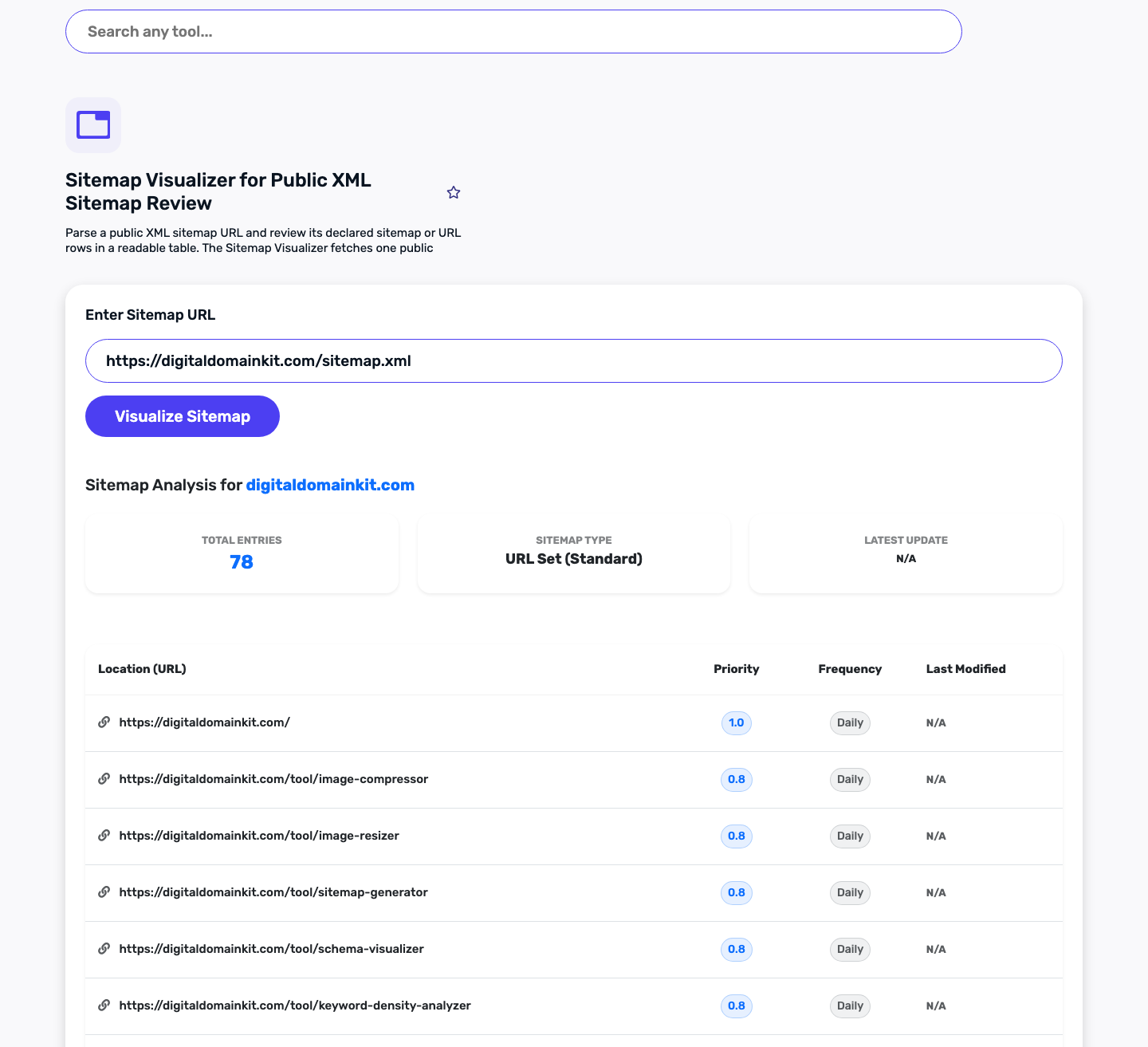
Paste the public sitemap URL into Digital Domain Kit's Sitemap Visualizer. It shows whether a public XML file contains a URL set or sitemap index and lets you review its declared entries. The tool is a manual inspection aid. It cannot access your private Search Console property or tell you whether Google indexed a page. The screenshot below uses Digital Domain Kit's own public sitemap; the count is a point-in-time observation and will change as pages are published.
A sitemap index is a list of child sitemaps, so finding no page URLs in the first file can be normal. Open the relevant child file. Google's sitemap guidance calls for absolute URLs and recommends including URLs you want shown in search. For a small site, the list should be easy to compare with the pages actually published. A sitemap that loads in your browser but fails through a particular firewall, bot filter, or CDN rule needs server and access-log investigation; do not assume every requester saw your successful browser response.
Stage 2: check that the right URL is listed
Search the sitemap entries for your chosen page's exact final URL. Compare scheme, host, path, trailing slash, and case where your server treats them differently. If the page is missing, inspect the CMS or sitemap generator's inclusion rules. It may exclude a content type, require a published state, or use a stale cache. Do not manually add a draft just to make the count look better. Correct the source rule, regenerate the file, and verify the public result.
If the URL is listed, ask whether it is the version you actually serve. For example, a page at https://example.com/guide that permanently redirects to https://example.com/guides/guide should generally be represented by the latter. Google's documentation describes sitemap inclusion as a canonical hint, so conflicting versions create avoidable ambiguity. Internal links should also point to the intended final address. A sitemap can help discovery, but it is a poor substitute for a page being reachable through the site's normal navigation.
Stage 3: review what the page itself sends
Load the exact canonical address without signing in. A usable page normally returns a successful response and meaningful content. A nominal 200 page that displays an error message can be treated as a soft 404. An intermittent server error can explain a crawl failure even if your next manual attempt succeeds. Use Digital Domain Kit's HTTP Status Code Checker for a quick outside request, then inspect server logs or CDN logs if the results differ by time or location.
Next, inspect the page's robots meta tag or X-Robots-Tag header for noindex, and inspect the site's robots.txt for crawl restrictions. These controls answer different questions. A robots disallow tells a compliant crawler not to fetch a path; it is not a reliable private-content control. A noindex instruction must be accessible to the crawler to be seen. Google's noindex documentation specifically warns that blocking the page in robots.txt can prevent Googlebot from seeing the noindex rule. For private material, use proper access control instead.
Finally, inspect the page's canonical link. A canonical pointing to another page may be correct when the content is a duplicate, but it may also be a copied template bug. Compare it with the sitemap URL and internal links. If your page redirects, check the final response and the final page's canonical rather than reading the source address in isolation. Do not change canonical tags on every page because one URL is missing; find the exact mismatch first.
Stage 4: use Search Console for the missing piece
In a verified property, inspect the exact URL. Google's URL Inspection help explains that the report separates page fetch from page indexing or availability. Read the stated reason, last crawl information when available, and the canonical chosen by Google. Run a live test when you need to compare current delivery with the last recorded crawl. A live pass does not rewrite the historical report, and it does not guarantee the page will be indexed.
If Search Console says it has not discovered the URL, check links and sitemap membership. If it discovered but has not crawled it, confirm access and give the system time. If it crawled but did not index it, review whether the content is substantially useful and distinct from nearby pages, as well as any canonical, soft-error, or server issues the report names. If it selected a different canonical, compare the pages and signals before overriding anything. If it says the page is indexed, the remaining question may be how it appears for particular searches, which is outside what a sitemap inspection can diagnose.
When the sitemap report says “Couldn't fetch”
Treat that message as a problem with the sitemap request until evidence points elsewhere. Verify the submitted address, its public response, the XML syntax, redirects, and whether a firewall or CDN serves a different response to automated requests. Check the relevant time window in server or CDN logs if you have access. An XML file that works now does not erase an earlier transient block or outage. Search Console's Page indexing help recommends validating sitemap access and using URL Inspection for individual pages.
The message does not mean all pages have disappeared from search. Google can find pages through links and prior crawls. Conversely, a successful sitemap fetch does not mean every entry was indexed. Keep those observations separate in your issue log: sitemap fetch status, URL presence, page fetch, and index status. A Reddit discussion about a sitemap marked “Couldn't fetch” while pages remained indexed illustrates why this distinction matters; the thread is a reader question, not a source of technical authority.
Use a short evidence log before making changes
For each affected URL, record the check date, submitted sitemap URL, canonical page URL, sitemap membership, page response, redirect destination, robots and noindex status, the Search Console reason, and the next owner action. Keep a screenshot of Search Console in a private issue if it contains property information. You do not need to publish account screenshots or export an entire site to make a diagnosis. A small sample of important pages usually reveals whether the defect is a shared template rule or a single-page error.
Prioritize reversible fixes tied to evidence. Repair a broken sitemap endpoint, remove a mistaken noindex from a page that should be public, correct an accidental canonical, or restore a navigation link. Then regenerate the sitemap and verify the same sample again. If the technical signals are clean, improve the page for its intended reader rather than cycling through metadata tweaks. Search systems decide whether to index; you control the quality and accessibility of the page they can evaluate.
A final checklist
- The sitemap URL submitted to Search Console loads publicly and contains valid XML.
- The intended final HTTPS page, not an obsolete redirecting address, is listed.
- The page returns useful content without a login, soft error, or intermittent failure.
- Robots and noindex instructions match the decision to publish the page.
- Canonical tags, redirects, sitemap entries, and internal links agree on the preferred URL.
- URL Inspection supplies the specific current or historical reason you will act on.
- You recorded the changed rule and checked the public result after deployment.
If this guide missed a case your site exposed, send the editorial team a correction. Recheck this workflow when Search Console terminology or Google's documented sitemap behavior changes.
Sources and review method
Reviewed October 5, 2026 against Google's sitemap overview, build guidance, noindex guidance, and URL Inspection help. The public Digital Domain Kit sitemap and tool result were inspected on that date. No Search Console property, private logs, vendor dashboard, or Google indexing outcome was tested for this guide. The Reddit question about valid files and missing pages helped select the reader problem; official documentation supports the technical instructions.