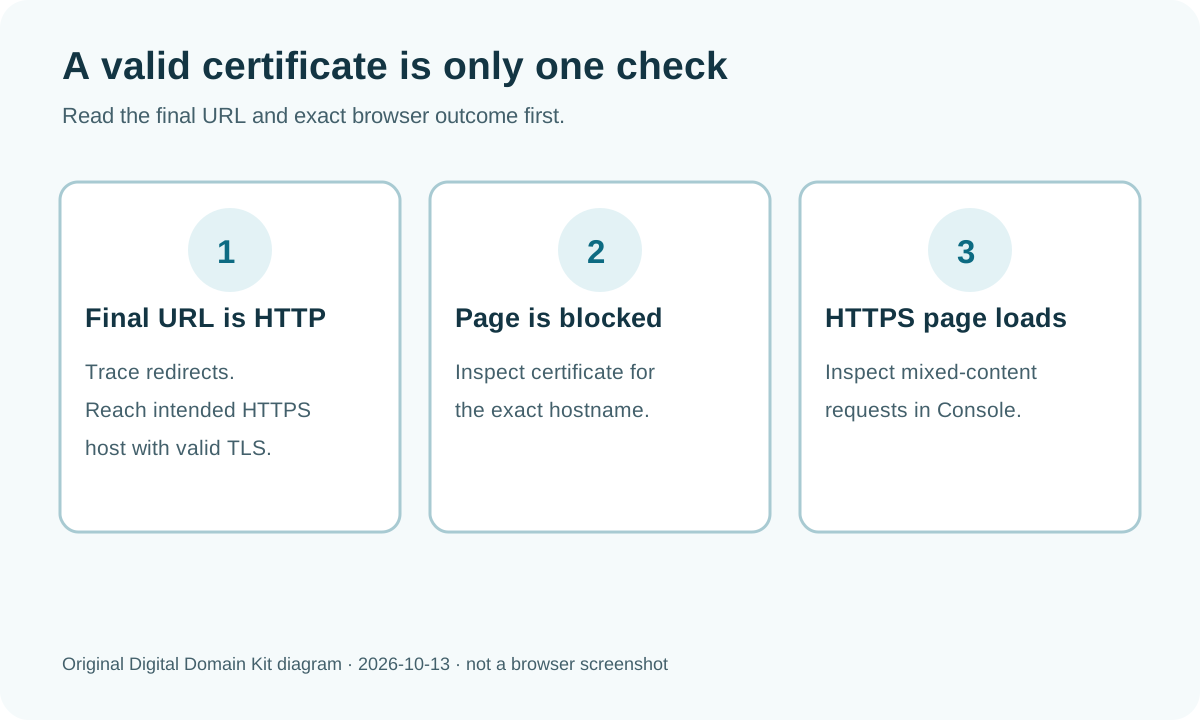
You ran an SSL checker and saw a certificate marked valid, yet the browser still labels a page “Not Secure” or shows a warning. That is not necessarily a contradiction. A checker can confirm the certificate presented by one hostname at one moment. A browser evaluates the exact address you opened and, after the main page loads, the resources that page requests. The two checks may be looking at different URLs or different layers of the same visit.
A new site owner in r/webhosting described a secure public view but an insecure editing view. The discussion raised HTTP access to the admin path and mixed content as possibilities. That is an anecdote, not a diagnosis of every site. The useful lesson is to write down the exact failing URL and browser message before changing certificates or installing a plugin.
Short answer: First look at the address bar. If the final page is http://, fix HTTPS navigation and redirects. If the browser stops before loading the page with a certificate warning, inspect the certificate for that exact hostname, including www or the admin subdomain. If the HTTPS page loads but its interface or console reports insecure resources, inspect mixed-content requests and replace their HTTP URLs at the source. A valid certificate alone cannot fix the other two cases.
Identify the warning, not just the icon
Save the full URL, whether the browser loaded any page content, the warning text, and whether the problem occurs on the homepage, a specific path, the editor, or all pages. Try the same address in a fresh private window to separate a cached redirect or extension behavior from the public page, but do not treat a private-window success as proof that the site is fixed for everyone. If an organization-managed browser uses security software that intercepts HTTPS, ask its administrator before drawing conclusions from one machine.
| Observed behavior | Likely category | Next check |
|---|---|---|
Address bar ends at http:// | Insecure top-level navigation | Follow HTTP-to-HTTPS redirect chain. |
| Browser blocks page before content loads | TLS/certificate error | Inspect exact hostname, dates, issuer, and chain. |
| HTTPS page loads, console flags HTTP resources | Mixed content | Find the initiating template, script, or saved URL. |
Only www or admin host fails | Hostname-specific setup | Inspect that host separately from the apex. |
Do not bypass a browser certificate warning to test a login or payment page. A bypass removes the protection the warning is trying to provide. Use public checks or work with the host while the problem is unresolved.
Case 1: The browser is actually on HTTP
A valid certificate may be installed on https://example.com while http://example.com remains accessible. The browser cannot show an HTTPS connection for a page loaded over plain HTTP. Start by typing the full HTTPS URL. Then type the HTTP version and observe whether it redirects to the intended HTTPS address. Use the Digital Domain Kit Redirect Checker to inspect both versions, including the final destination. A redirect may land on an old hostname or on HTTP again, so do not judge success from the first hop alone.
Check www and the base domain separately. They are distinct hosts and may have different web-server rules. An admin interface can also be reached through a separate hostname or a direct server URL, neither covered by the public site’s certificate. Configure HTTPS and redirects according to the actual host and platform documentation. Avoid forcing HTTPS before the target hostname has a working certificate; that can replace an insecure page with an inaccessible one.

If the site is behind a CDN or reverse proxy, there may be HTTPS between browser and proxy but HTTP between proxy and origin. That is a separate security and routing choice. Do not assume the browser icon proves the origin leg is encrypted; inspect the proxy’s encryption mode and the origin certificate. Conversely, do not change encryption mode at random just to make the icon disappear. A mismatch between proxy and origin redirect rules can create a loop, not a secure page.
For a site with several domains, write down a small URL inventory before editing settings: apex homepage, www homepage, login or editor URL, and any separate shop or help subdomain. The inventory prevents a common false finish where the homepage is fixed but the address visitors reach from an old bookmark is still HTTP. Ask the host which layer owns each redirect. If both the CDN and application enforce competing hostnames, the browser can end in a loop even though the certificate itself is valid. Preserve a before-and-after redirect trace so the change is reversible and testable.
Case 2: The certificate is valid, but not for this hostname
TLS certificates bind a public key to one or more DNS names. MDN’s TLS explanation describes the certificate’s role in server authentication. A certificate can be unexpired and trusted but still fail for www.example.com if it only covers example.com. The same distinction applies to shop.example.com, an admin hostname, or a deeper subdomain.
Run the Digital Domain Kit SSL Checker for the exact failing hostname, not just the base domain. Compare the Subject Alternative Names (SANs), validity period, and issuer with the browser address. Check whether the failing URL redirects to a new host after the initial request. The final host needs its own valid coverage. A wildcard such as *.example.com generally covers one subdomain level, not every possible nested name. Use the issuing provider’s coverage rules rather than guessing from the product label.
If the hostname is absent, add that name to the website or CDN platform and complete its certificate provisioning workflow. If the certificate expired, check renewal status and any DNS or HTTP validation failure. If the browser complains about trust or an incomplete chain, let the host or certificate provider inspect the served chain. Do not replace a valid public certificate merely because a different hostname or old IP presents a different one; first identify which server the browser reached.
A public checker reports what it saw at its test endpoint. Different networks can reach different IP addresses when a DNS change is in progress, and a proxy can present a different certificate from the origin. Compare public DNS for A, AAAA, and CNAME using the DNS Lookup tool if results vary by host or network. Record the time and hostname for support. Never paste a private certificate key into a public checker; only the public hostname is needed.
Pay attention to the difference between the name you requested and the server name in an error report. A redirect can take example.com to legacy.example.net; checking only the original name misses the certificate that actually stopped the browser. Likewise, a site may have a good IPv4 route and a stale IPv6 route pointing at an older server. If certificate observations differ by network, compare both A and AAAA answers and ask the host which addresses should serve the domain. Removing IPv6 blindly is not a universal fix; first establish whether the record is intended and whether that endpoint is configured.
Case 3: The HTTPS document requests insecure resources
When the main document loads through HTTPS but its HTML, CSS, or scripts request HTTP resources, the page contains mixed content. MDN’s mixed-content guide explains that browsers may automatically upgrade some images, audio, and video but block scripts, stylesheets, frames, fonts, and other requests. The exact behavior depends on resource type and browser, so a page can appear visually fine while a required script has been blocked. Do not equate one padlock appearance with a complete resource audit.
Open browser developer tools on the failing page and check the Console and Network panels. Filter for mixed-content messages and http:// requests. Click a blocked request to find the initiator: perhaps a theme stylesheet, an embedded widget, a saved image URL in a CMS field, or an API endpoint built by JavaScript. The source of the URL matters. Editing the rendered HTML in developer tools changes only your local view; update the template, CMS content, asset configuration, or third-party embed that generates it.
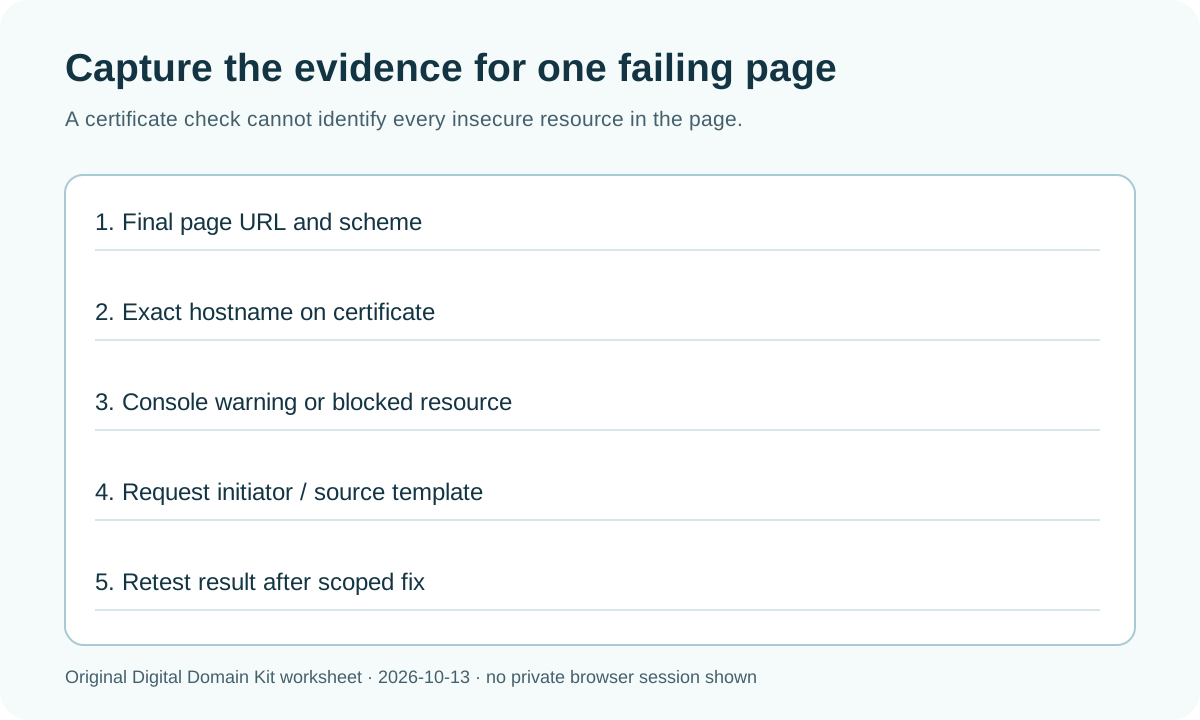
Use HTTPS versions of your own assets. For third-party assets, confirm the provider offers HTTPS; if not, replace the embed or host an allowed copy under your control where licensing permits. A broad text replacement from http: to https: can break external links and application data, so scope edits to actual resource URLs. Test the changed asset directly over HTTPS before publishing. MDN recommends serving all page content through HTTPS and points to the developer console as a primary diagnostic surface.
A Content Security Policy with upgrade-insecure-requests can help migrate legacy references, but it is not a substitute for knowing whether the target supports HTTPS. The browser may rewrite a URL to HTTPS and then fail because no secure resource exists there. MDN’s CSP guide explains that policy as a migration tool; use it after you understand the page’s requests, not as a blind cover-up.
Retest the page, not just the certificate
After the relevant fix, load the exact failing URL in a browser. Verify the final URL remains HTTPS, inspect the browser’s connection details, and reload with the console open. Check the homepage, one inner page, the admin path if applicable, and a form or checkout only through a safe test workflow. A site can have clean homepage resources while a legacy article or template still embeds an HTTP iframe. Test on mobile as well if the mobile template or image sources differ.
Run the SSL Checker again only for a certificate-related change. It cannot prove the page contains no mixed content or that all redirects are correct. For those conditions, inspect the actual page and redirect chain. If different browsers disagree, record their versions and whether extensions, cached data, or enterprise interception may be involved; do not claim a universal browser bug from one workstation.
Final checklist
- Record the exact final URL and browser warning; do not shorten it to “SSL broken.”
- Check the HTTP and HTTPS redirect paths for both apex and
www. - Inspect the certificate presented for the exact failing hostname and its SAN coverage.
- Check the browser console for mixed-content requests and their initiators.
- Fix URLs at their source; test each changed resource over HTTPS.
- Retest the same page and a representative inner page in a fresh session.
For an error in this guide, use the Digital Domain Kit contact page. Send a public failing URL and warning text if appropriate, but never share a private key or login credential.
Sources and review method
Reviewed October 13, 2026 against MDN’s TLS, mixed content, and Content Security Policy documentation. The Reddit thread above informed the reader scenario. No private site, admin account, browser warning, or live certificate repair was tested for this article; the figures are original diagnostic diagrams rather than screenshots.